To access ransomware protection, open the Windows Security app on Windows 10 or 11, select Virus and threat protection, scroll to ransomware protection, and configure Controlled folder access, as outlined by Microsoft Support.
 TechMediaArch.com TechMediaArch.com |
| Secure digital lock protecting files on a laptop screen |
Users can also navigate through Start, Settings, Update and Security, Windows Security, Virus and threat protection, and Manage Ransomware Protection, according to Tech Advisor.
Understanding Ransomware Protection Fundamentals
According to Microsoft Support, ransomware protection refers to security measures and features designed to prevent ransomware attacks. In these incidents, hackers deploy file-encrypting malware to lock users out of their data and systems and demand payment.
Norton explains that ransomware protection encompasses any actions taken to safeguard files against unauthorized encryption attempts. These safeguards include anti-malware software, user access management, regular backups, and response plans.
Microsoft Security identifies the two main classifications of threats as crypto ransomware and locker ransomware. Crypto ransomware encrypts sensitive data and files, while locker ransomware locks victims out of their hardware devices entirely.
Unsecured systems remain vulnerable to these sophisticated entry vectors, which you can read more about in our guide on How Ransomware Gets Installed: Common Entry Points.
Evaluating Whether to Enable Ransomware Protections
Microsoft Support recommends enabling ransomware protection features because built-in defenses are often disabled by default. This default state requires manual activation to secure local folders against unexpected background alterations.
Tech Advisor notes that users should turn on ransomware protection because operating system defenses do not always shield user files automatically. Leaving directories unprotected leaves critical information vulnerable until toggled on by the device owner.
According to Microsoft Defender for Endpoint, you should have ransomware protection on because features like Controlled Folder Access block untrusted executable formats from tampering with critical data sectors. Blocked extensions specifically include executable programs, script files, and dynamic link libraries.
NinjaOne states that users should turn on ransomware protection to prevent unauthorized background applications from executing malicious data modifications, exfiltration, or directory lockouts. These built-in security features form an essential baseline for modern digital defense, aligning with strategies detailed in our overview of What is Ransomware in Cyber Security: A Complete Guide.
Configuring Controlled Folder Access on Windows
Microsoft Defender for Endpoint defines Controlled Folder Access as a core capability that allows only trusted apps to change files inside protected user directories. When an unapproved or unknown app attempts to modify a protected folder, the system immediately blocks the action and generates a security notification.
Microsoft Support specifies that configuring comprehensive ransomware protection requires turning on Controlled Folder Access to guard default local directories. These protected folders include Documents, Pictures, Videos, Music, and Favorites.
Windows Security allows users who experience application conflicts under ransomware protection to manually add safe or allowed apps to an exclusion list, according to Microsoft Learn.
Administrators can also centrally access and configure Controlled Folder Access across enterprise devices by using Microsoft Intune endpoint security Attack Surface Reduction policies, as reported by Microsoft Defender for Endpoint.
Activating Norton Security Software
According to AOMEI, users must launch the Norton application and navigate to specific internal menus to activate and enable protection manually. This process requires accessing Settings, then Security, and finally the Advanced tab.
Norton notes that users can activate their overarching device security app subscription through official online portals. This activation happens by signing in to the provider website with a valid account and clicking Download, or by entering a purchased product key.
Prompts indicating that Norton Ransomware Protection is not activated typically stem from expired subscriptions, installation corruption, or outdated software versions, as stated by AOMEI. Resolving these notification prompts usually requires renewing licenses or reinstalling corrupted software packages.
AOMEI explains that users should activate Norton ransomware protection to leverage behavioral monitoring. Behavioral monitoring watches for suspicious activity patterns, such as programs modifying large volumes of files rapidly, rather than relying solely on static definitions.
 TechMediaArch.com TechMediaArch.com |
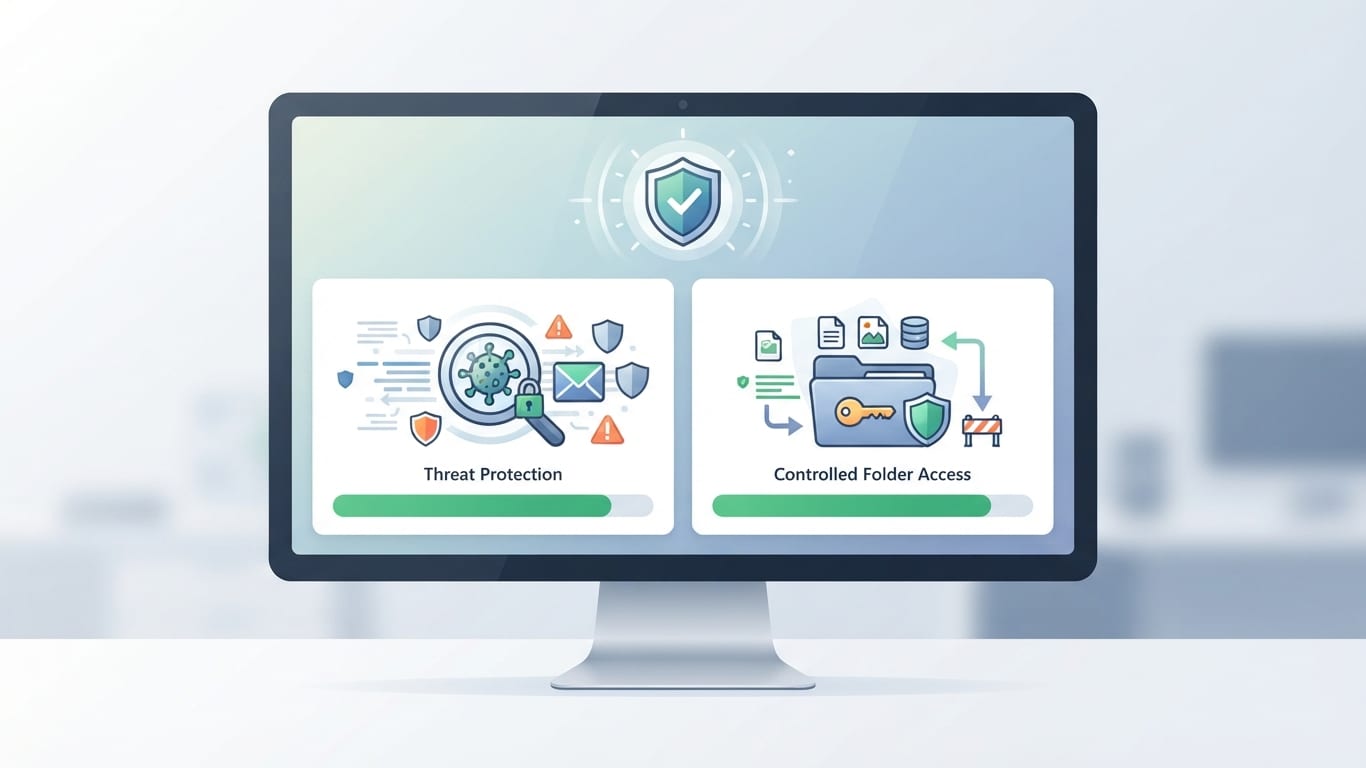
| Computer monitor displaying security settings and threat protection |
Integrating Cloud Backups and Versioning
Microsoft Support notes that cloud services complement local ransomware protection by providing built-in ransomware detection, recovery, and file versioning. These cloud tools allow users to restore previous iterations of important documents after an incident.
According to Microsoft Service Assurance, organizations and individuals should activate cloud-integrated ransomware features to successfully roll back encrypted files. For instance, Microsoft 365 versioning retains at least 500 file versions by default.
Microsoft Service Assurance also points out that cloud recycle bins provide a specific retention window to restore files if malware creates an encrypted copy and deletes the original source file. This recovery window spans 93 days for both OneDrive and SharePoint environments.
Pairing cloud backups with advanced defense architectures helps maintain operational continuity, mirroring principles found in discussions on What Are Zero Trust Security Models: A Complete Guide.
Leveraging Cloud Intelligence and Threat Defenses
Microsoft Learn highlights that Windows Defender incorporates cloud-delivered protection that connects to threat intelligence networks to analyze emerging ransomware variants in real time. Automatic sample submission in Windows Defender uploads potentially malicious files to Microsoft cloud infrastructure for analysis, allowing the rapid distribution of global defenses if ransomware is confirmed, according to Microsoft Learn.
Microsoft Learn explains that Windows Defender includes Tamper Protection to prevent malware from maliciously turning off real-time protection or disabling Controlled Folder Access. Exchange Online Protection scans incoming emails and attachments in real time, automatically deleting messages containing known or suspected ransomware payloads, as documented by Microsoft Learn.
Step-by-Step Security Deployment Options
The following procedures outline manual activation steps for primary security environments:
- Open the Windows Security app through the main operating system menu.
- Navigate to the Virus and threat protection section and locate the ransomware settings.
- Toggle Controlled folder access to the active position to secure default user directories.
- Launch the Norton security application and access Settings, Security, and Advanced options.
- Sign in to your account portal to validate subscriptions or enter product keys.
Reviewing these verification tasks ensures continuous protection against evolving digital threats:
- Check exclusion lists in Windows Security to verify that trusted applications run smoothly.
- Confirm that Microsoft OneDrive or SharePoint versioning is enabled for document recovery.
- Verify that cloud-delivered protection and automatic sample submission remain toggled on.
- Monitor security notification centers for blocked executable modification alerts.
- Inspect cloud recycle bin retention settings to ensure a 93-day recovery window.
FAQ
Should I enable ransomware protection?
Microsoft Support recommends enabling ransomware protection features because built-in operating system defenses are often disabled by default. Turning on these features secures local folders and prevents unauthorized background applications from executing malicious data modifications or directory lockouts.
What is ransomware protection?
According to Microsoft Support, ransomware protection refers to security measures and features designed to prevent ransomware attacks where hackers deploy file-encrypting malware. Norton adds that these protections encompass any actions taken to safeguard files against unauthorized encryption attempts, including anti-malware software, user access management, and regular backups.
Should I have ransomware protection on?
Microsoft Defender for Endpoint states that you should have ransomware protection on because features like Controlled Folder Access block untrusted executable formats from tampering with critical data sectors. Default operating system defenses do not always shield user files automatically, leaving directories vulnerable until toggled on.
Should I turn on ransomware protection?
NinjaOne notes that you should turn on ransomware protection to prevent unauthorized background applications from executing malicious data modifications, exfiltration, or directory lockouts. Activating these controls ensures that unapproved applications cannot alter protected files without triggering immediate security notifications.
Should I activate norton ransomware protection?
AOMEI explains that users should activate Norton ransomware protection to leverage behavioral monitoring, which watches for suspicious activity patterns. Behavioral monitoring identifies programs modifying large volumes of files rapidly rather than relying solely on static definitions.